Connect to GitLab with SSH#
We recommend using SSH to connect to the Eawag GitLab rather than HTTPS. The setup may seem a bit complicated, but it has the advantage that once set up, you will never have to enter a password for Git commands again.
This guide shows how to generate a new SSH key and use it to connect to GitLab— all through the Windows Command Prompt.
Currently, this guide is only for Windows since it is the most used OS at Eawag. Please get in touch with us if you need it for Mac or Linux.
Prerequisites#
Windows 10 or 11
SSH-client (preinstalled)
Command Prompt
GitLab account (Get access to the Eawag GitLab)
Generate a New SSH Key#
Open Command Prompt (press Windows-Key → type
cmd→ press Enter)Paste the following line into the Command Prompt and change the e-mail address to your Eawag mail:
ssh-keygen -t ed25519 -C "firstname.lastname@eawag.ch"
Then, press Enter to run the command. Press again if there was no reaction. Once succeeded, your prompt will show a randomart image.
When prompted for a file path, press Enter to accept the default:
C:\Users\YourUsername\.ssh\id_ed25519
When prompted for a passphrase, press Enter to skip or add a passphrase if you want to be extra-secure.
Copy the Public Key#
Display the contents of your public key:
type %USERPROFILE%\.ssh\id_ed25519.pub
Copy the entire output. It should look like:
ssh-ed25519 AAAAC3... firstname.lastname@eawag.ch
Add the SSH Key to GitLab#
Go to GitLab (https://gitlab.eawag.ch) and navigate to your settings:
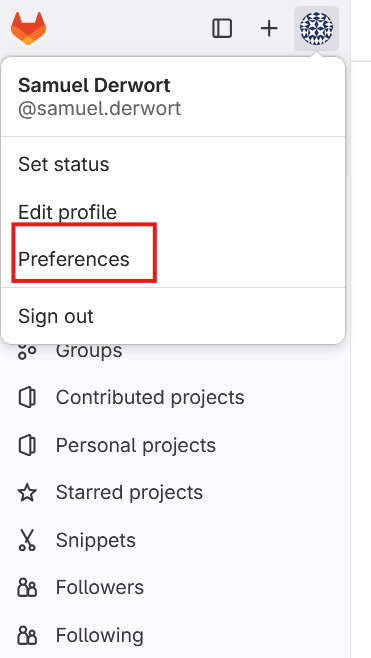
And then to ssh-keys and add a new key:
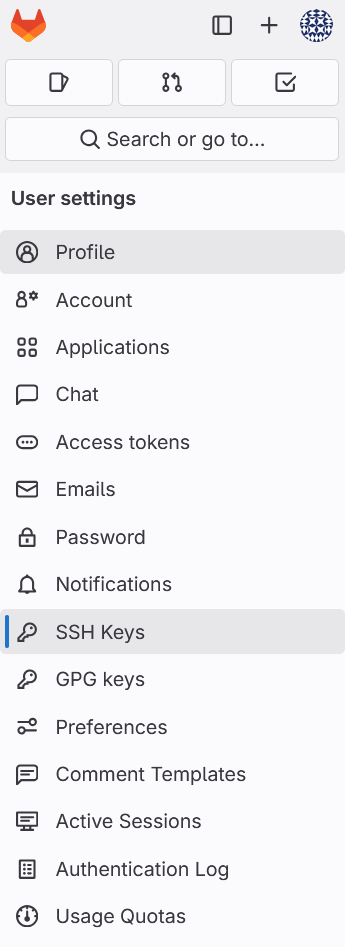
Paste the copied public key into the Key field
Remove the expiry date.
Add a descriptive title (e.g.,
Windows-11-PC-Eawag)Click Add Key.
Test the SSH Connection#
Run the following command in Command Prompt:
ssh -T git@gitlab.eawag.ch
On first connection, you may see:
The authenticity of host 'gitlab.com' can't be established.
Are you sure you want to continue connecting (yes/no)?
Type:
yesIf successful, GitLab will return:
Welcome to GitLab, @yourusername!
Congratulations, you won’t have to enter a password again!